On this page
If you have hired an agency, a freelancer, or a new marketing hire, they will ask for Search Console access on day one. It is the only place that shows which search queries bring people to your site, which pages Google has indexed, and what is quietly broken.
You do not need to share a login. Search Console has proper user management built in: you add someone by their email address, choose how much they can touch, and you can remove them the same way. This guide walks the whole thing, screen by screen.
Before you start
- You must be an Owner of the property. Full and Restricted users cannot add other people.
- You need the other person's Google account email — a Gmail address, or a work address on Google Workspace.
- Google Groups and distribution lists will not work. It has to be an individual Google account.
- Nothing here requires a password, a developer, or a phone call with Google.
Open Search Console and pick the right property
Go to search.google.com/search-console and sign in with the Google account that owns the site.
Use the property dropdown in the top left to select the site you are granting access to. This matters: permissions are set per property, not per account. If you manage four sites, you are only touching one of them right now.
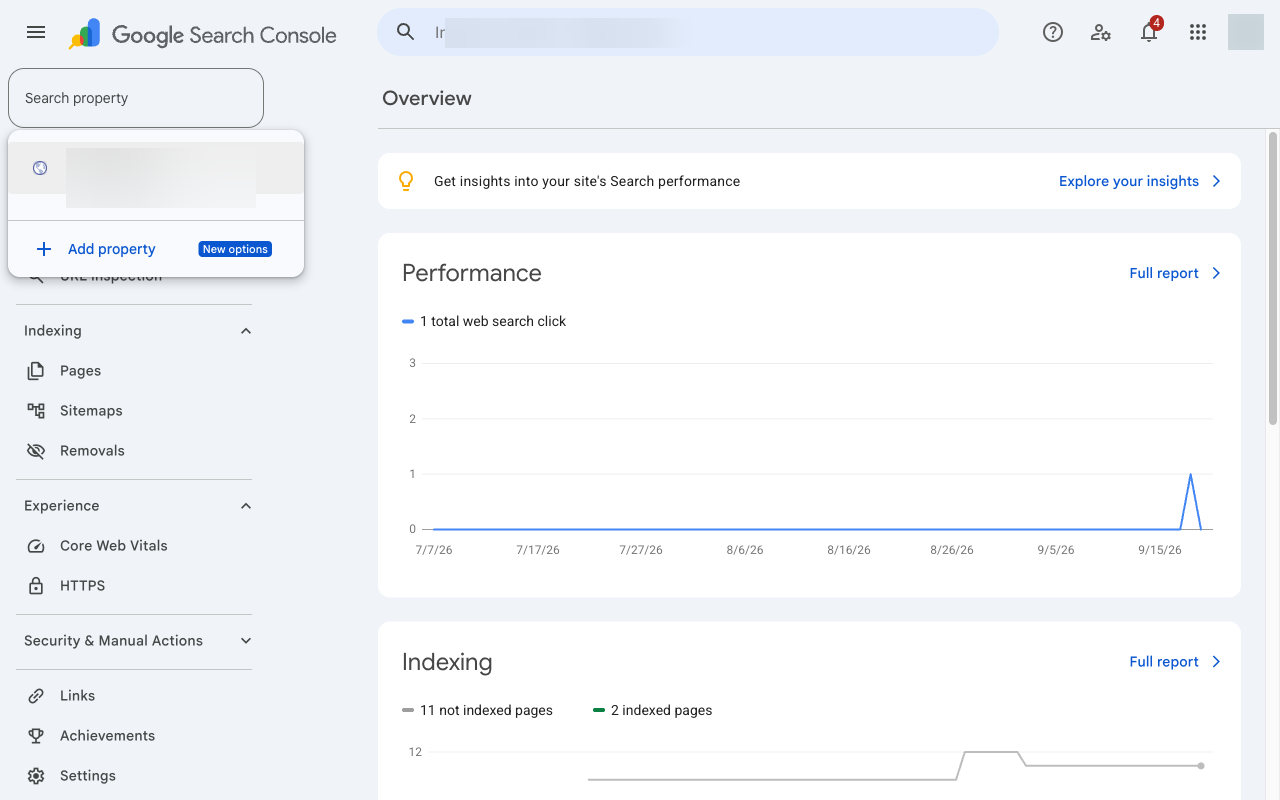
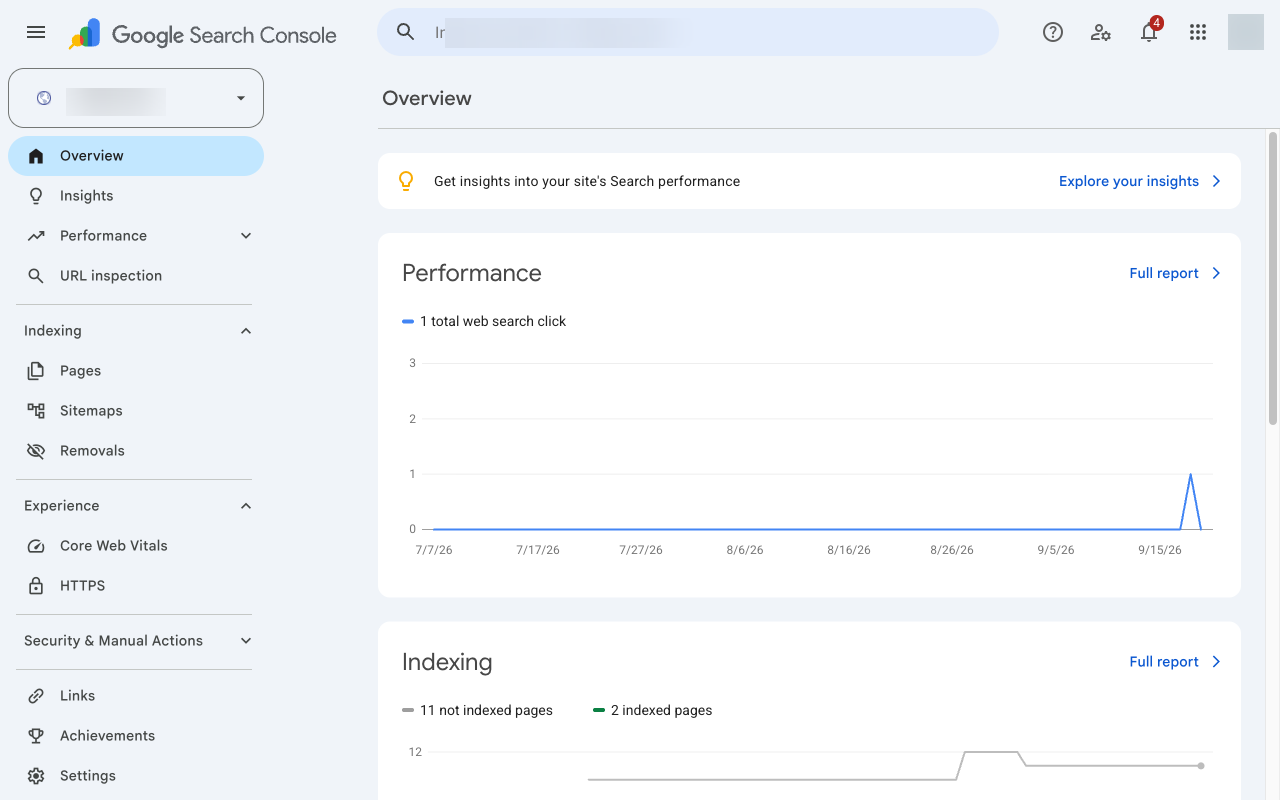
Click Settings in the left menu
Scroll to the bottom of the left-hand menu. Settings is the last item, below Links and above the Help links.
On a narrow screen the menu is collapsed behind the hamburger icon in the top left.
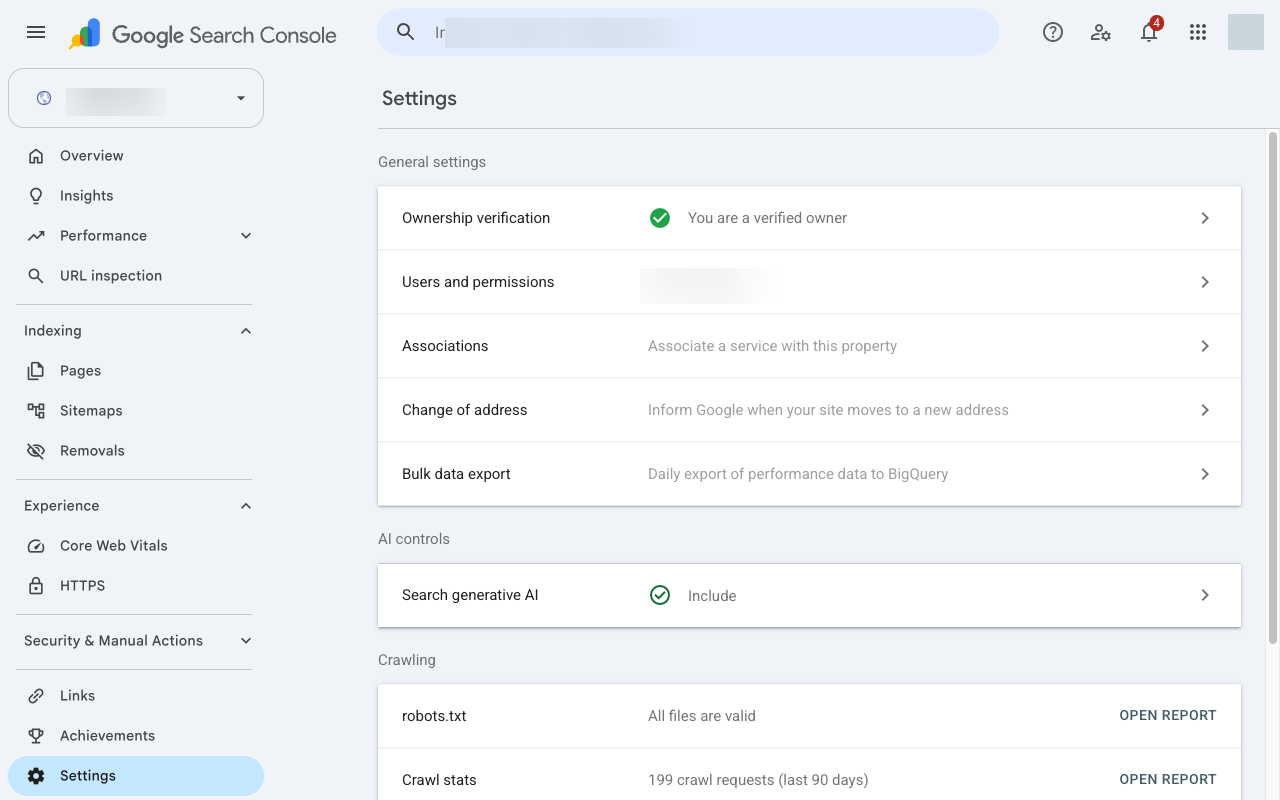
Open Users and permissions
The Settings screen lists ownership verification, crawl stats, and Users and permissions. Click it to see everyone who currently has access, and at what level.
This list is worth reading before you add anyone. Old agencies, former staff, and one-off contractors tend to still be sitting in here years later.
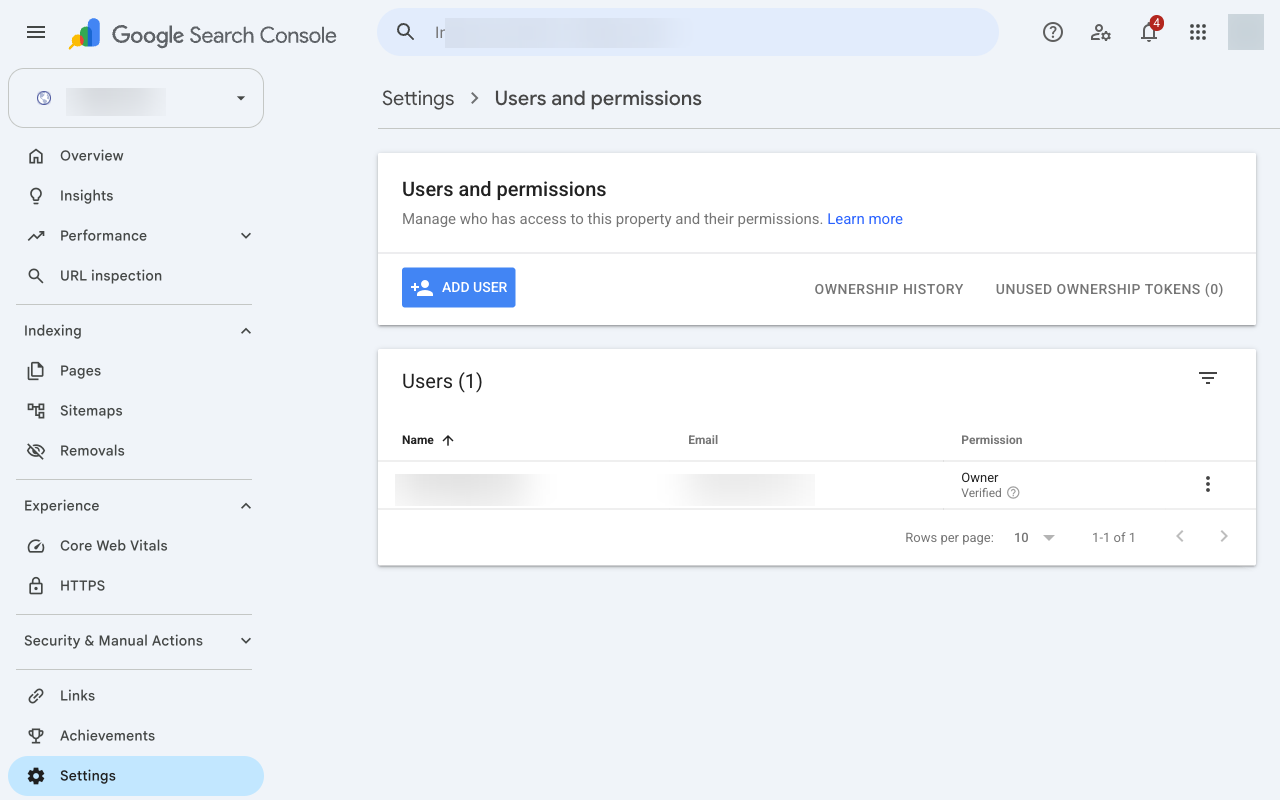
Click Add user
The blue Add user button sits at the top right of the user list. If you cannot see it, you are signed in as a Full or Restricted user rather than an Owner — see common problems below.
Enter their email and choose a permission level
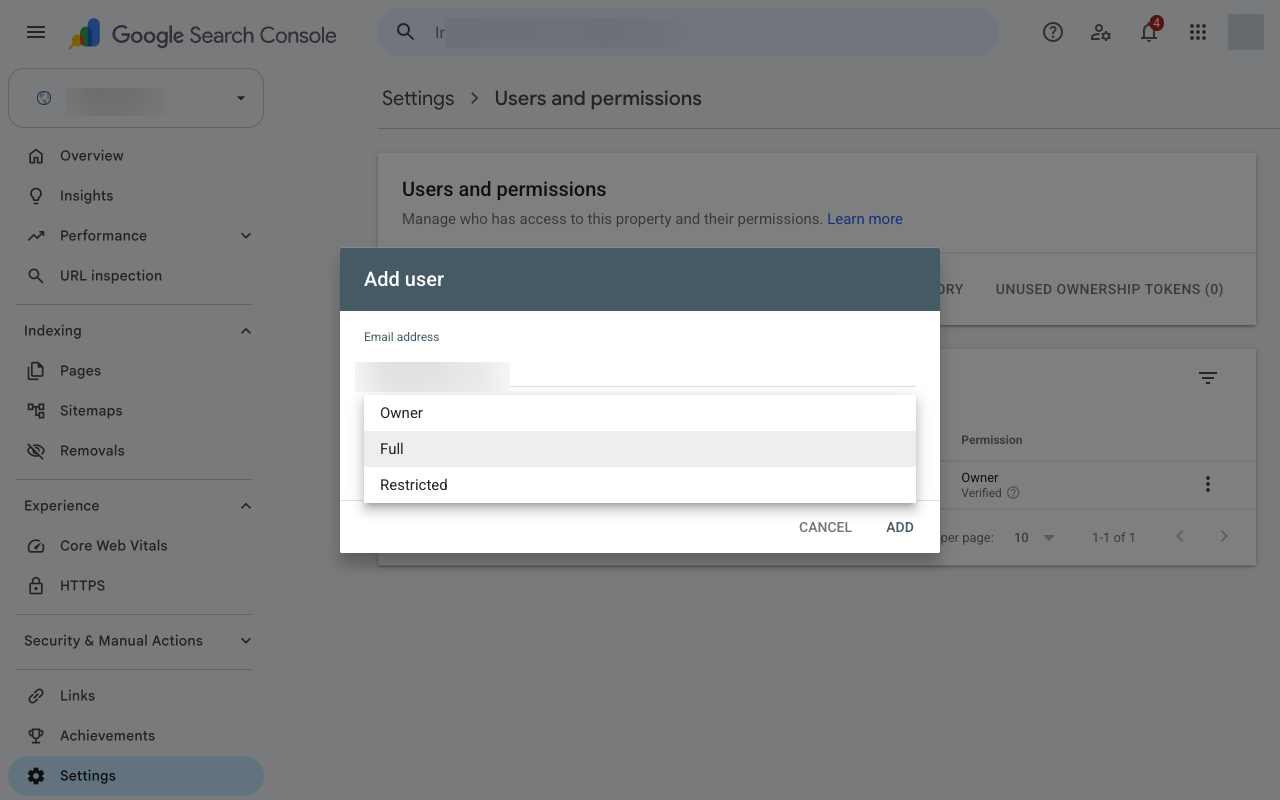
Type the Google account email address, then open the Permission dropdown. It offers three levels: Owner, Full, and Restricted. It defaults to Full. Click Add.
Full is the right answer for almost every agency or SEO partner — it lets them submit sitemaps, request indexing, and mark fixes as resolved, which is most of the actual work. Details on each level are in the next section.
Check that it saved
You land back on the same Users and permissions list from step four, and the new person is now a row on it, with their permission level beside their email. If the row is there, you are done.
Google emails them a notification, but they do not have to click anything in it — the access is already live. They sign in to Search Console and the property appears in their dropdown.
Which permission level to give
Search Console has three levels. The difference that matters in practice is whether the person can take actions that affect how Google sees your site.
- Everything, including adding and removing other users
- Can delete the property
- Verified owners proved ownership with a token; delegated owners were granted it by a verified owner
- Give this only to someone running a migration or rebuilding verification
- Sees all data and reports
- Submits sitemaps and requests indexing
- Validates fixes on coverage and Core Web Vitals issues
- Cannot add users or change ownership
- View access to most reports
- Cannot submit sitemaps or request indexing
- Cannot start fix validations
- Fine for a client-side exec who wants the numbers
A note on Owner access. Owner sits in the same dropdown as the other two, one click away, and it is worth being deliberate about. Someone you make an Owner becomes a delegated owner: they can add and remove users, including each other, and they keep that access until an owner takes it away. Full is enough for almost all outside help.
Domain properties vs URL-prefix properties
Many sites are set up twice in Search Console: once as a domain property (example.com, covering every subdomain and both http and https) and once as a URL-prefix property (https://www.example.com/).
These are separate properties with separate user lists. Adding someone to one does not add them to the other. If you see more than one entry for your site in the dropdown, add your agency to each of them, or check with them which one they want.
Changing or removing access later
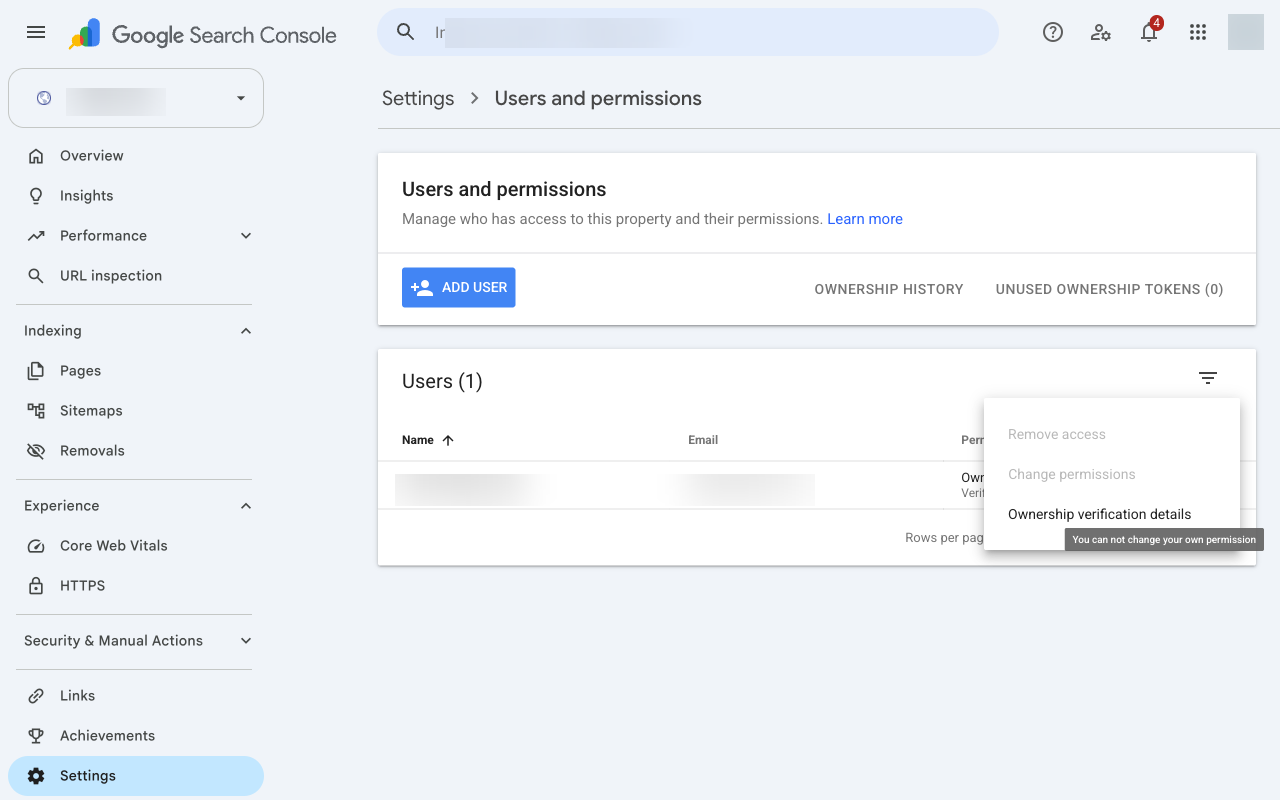
Back in Settings > Users and permissions, every row has a three-dot menu on the right. From there you can change the permission level or remove the user entirely. Removal takes effect immediately.
Worth doing twice a year: open that list and remove anyone who no longer works on the site. Search Console access outlives contracts unless someone deliberately clears it out.
One exception — a verified owner cannot simply be deleted from this list. They verified through a DNS record, an HTML file, a meta tag, or a linked Google Analytics account, so you have to remove that verification method as well. The three-dot menu shows you which one they used.
Common problems
There is no Add user button on my screen
You are signed in as a Full or Restricted user, not an Owner. Only Owners can manage users. Check the user list for who holds Owner — that is the person who needs to do this, or who needs to make you an owner first.
I added them, but they say they cannot see the property
Nine times out of ten they are signed in to a different Google account than the one you granted. Ask them to click their profile picture in the top right of Search Console and switch to the exact address you added. The other cause is a typo in the email — check the spelling on the row you created.
It will not accept our team email address
Search Console only accepts individual Google accounts. Google Groups, aliases, and distribution lists are rejected. If the address is not already a Google account, it can be registered as one at accounts.google.com without creating a Gmail inbox.
Is there a limit on how many people I can add?
Yes, but you will not hit it: 100 non-owner users per property, and 500 delegated owners.
Does giving access let them change my website?
No. Search Console is a reporting and diagnostics tool for how Google crawls your site. It has no connection to your website's admin, your hosting, or your content. A Full user can ask Google to recrawl a page; they cannot edit one.
Do I have to do this again for Google Analytics?
Yes — they are separate products with separate permissions. We have written that one up too: how to add a user to Google Analytics.