On this page
Google Analytics access is the first thing any marketing partner asks for, and the request usually stalls for a week because nobody can find the screen. It is not hidden, exactly — it is just two levels down in Admin, behind a decision most people do not know they are making.
This walks the whole thing in GA4, including the difference between account-level and property-level access, which of the five roles to hand out, and how to take access back later.
Before you start
- You need the Administrator role. Editors can see the user list but cannot change it.
- You need the other person's Google account email — Gmail or Google Workspace.
- Decide whether they should see one property or the whole account before you begin. More on that below.
- This is GA4. If your screens look nothing like these, you may still be on the old Universal Analytics, which stopped collecting data in 2023.
First, decide: account level or property level
Google Analytics is arranged in two tiers. An account holds one or more properties, and a property is a single website or app's data stream.
Grant access at the account level and the person gets that same role on every property inside it — every site, every brand, now and in future. Grant at the property level and they see only that one property.
Default to property level. Unless someone is running your entire analytics estate, give them the single property they are working on. It is the difference between handing over one key and handing over the keyring, and it costs you nothing — you can always add a second property later.
The steps below use property-level access. Account-level works identically; you just click Account access management in the left column of Admin instead.
Open Admin
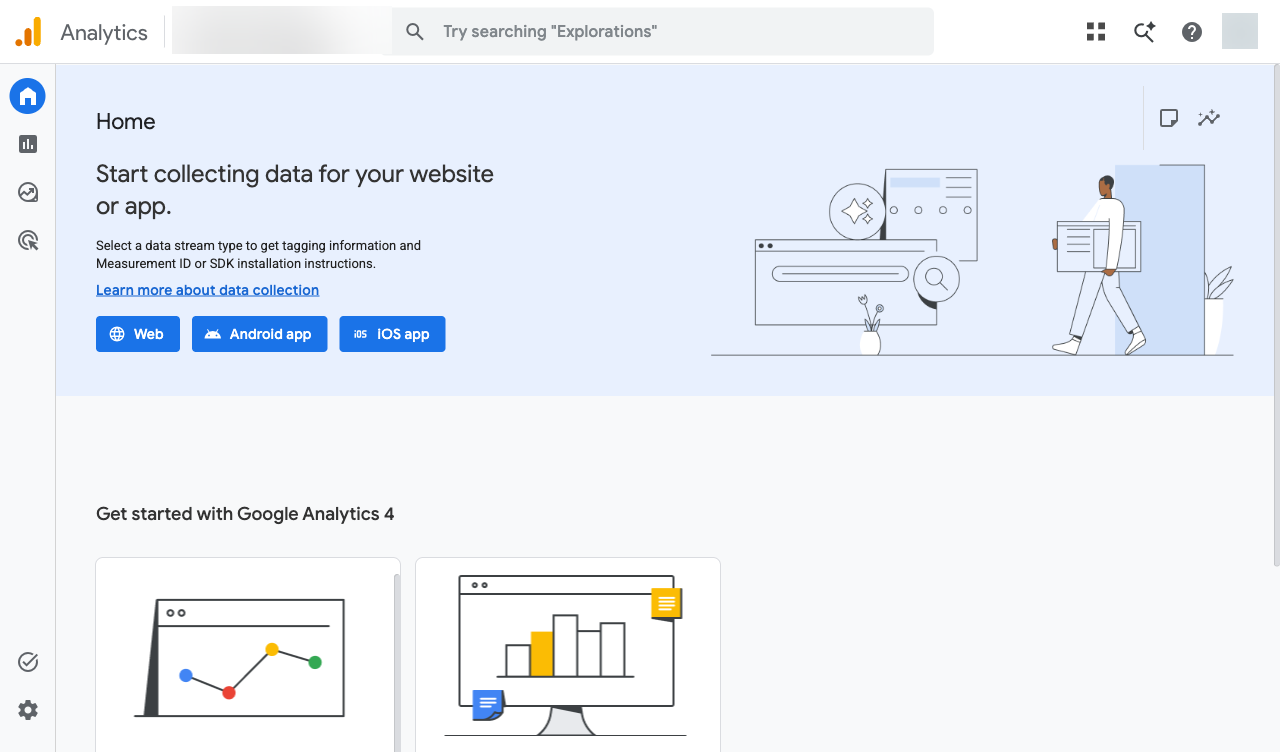
Go to analytics.google.com and sign in. Click Admin in the bottom left of the screen — it is the gear icon at the base of the left navigation.
Before you go further, check the account and property named at the top of the Admin screen. If you manage several, it is easy to grant access to the wrong one.
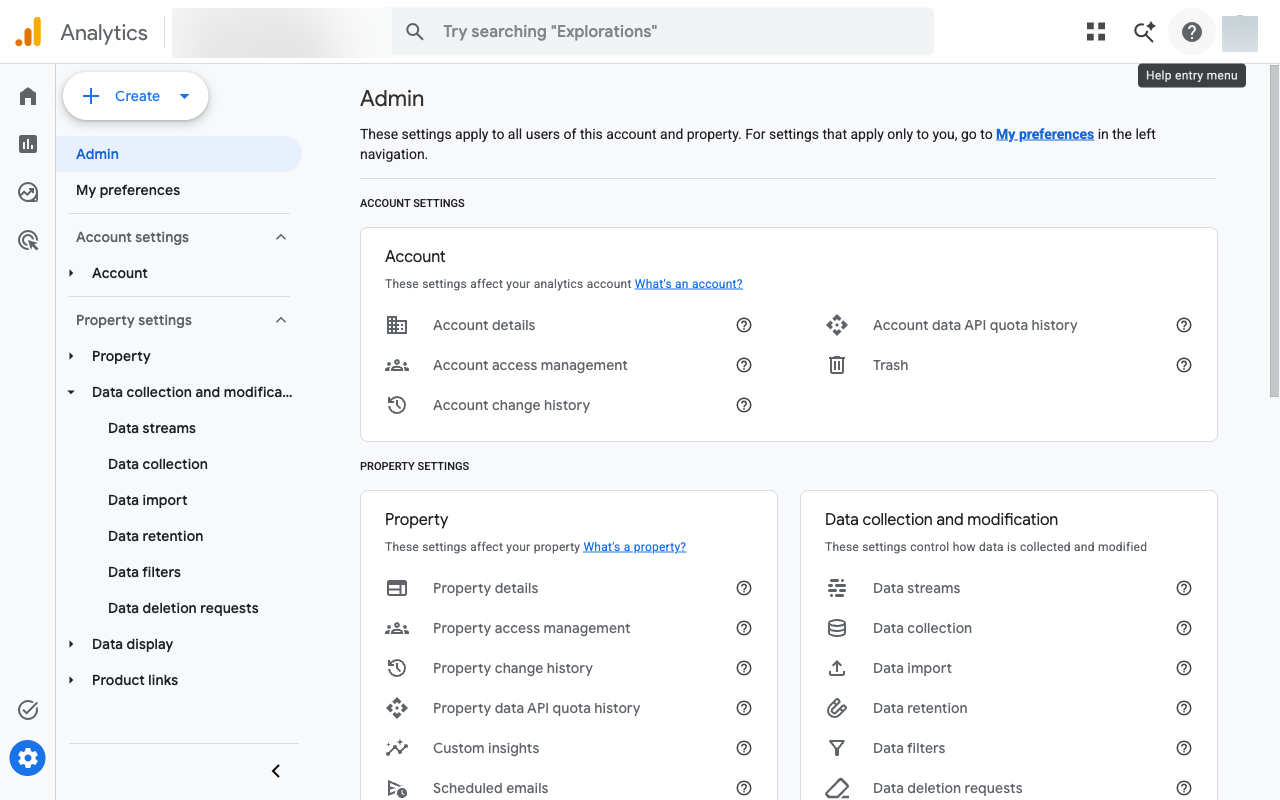
Click Property access management
The Admin screen is grouped into Account settings and Property settings. In the Property card, under Property settings, click Property access management.
Note the near-identical Account access management in the Account card above it. That is the account-level list described earlier — the one that applies to every property at once.
The list opens in a panel showing everyone with access to this property, their role, and whether that role was inherited from the account level. Inherited rows cannot be edited here.
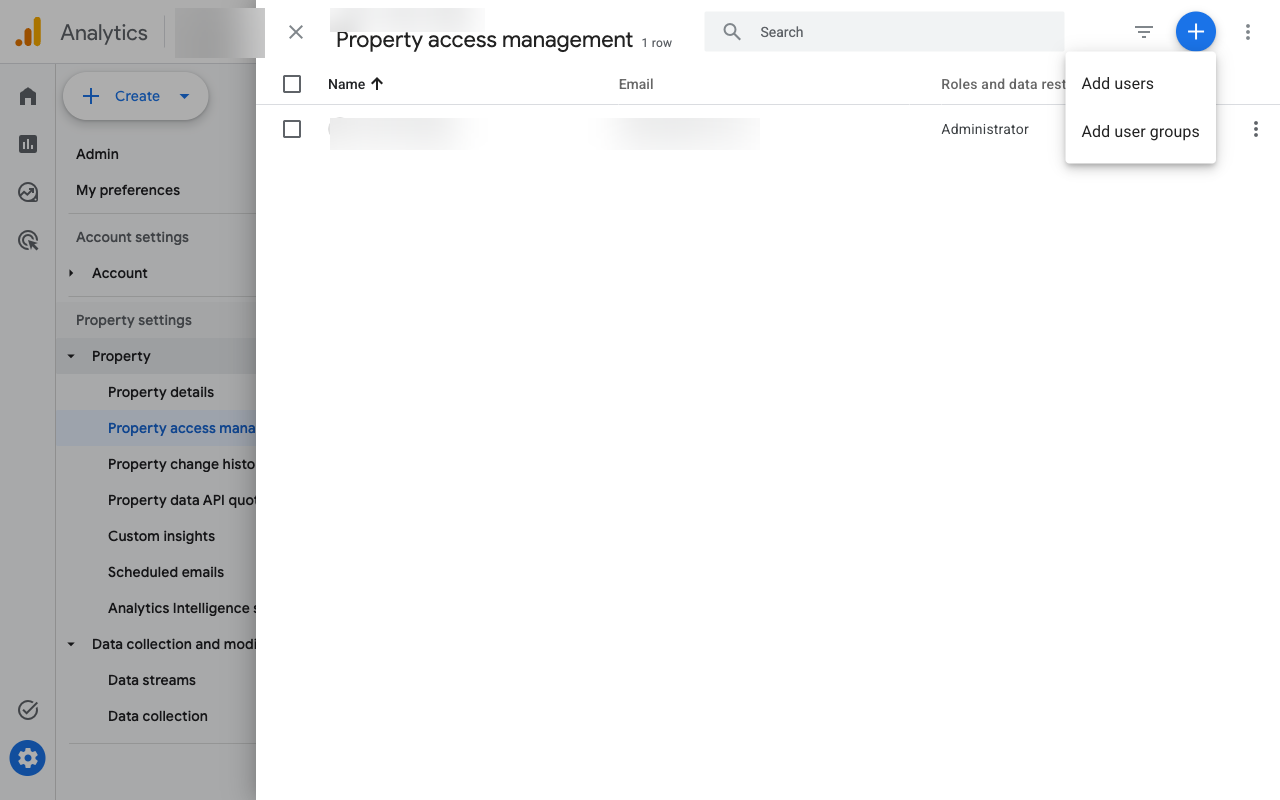
Click the plus, then Add users
The blue + button is in the top right of the user list. It opens a short menu with Add users and Add user groups. Choose Add users — user groups are a Google Workspace feature most businesses do not have configured.
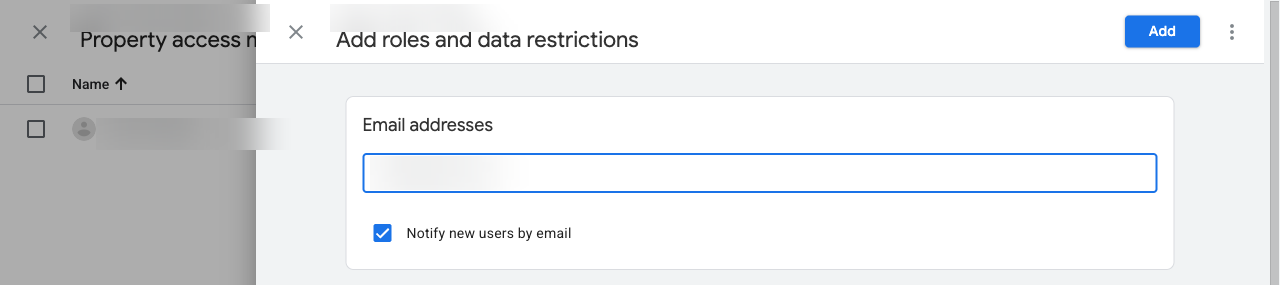
Enter their email address
Type the Google account email into the field at the top. You can add several addresses at once if you are onboarding a whole team at the same role.
Leave Notify new users by email ticked. It sends them a short message confirming they have access, which saves you the follow-up.
Choose a role
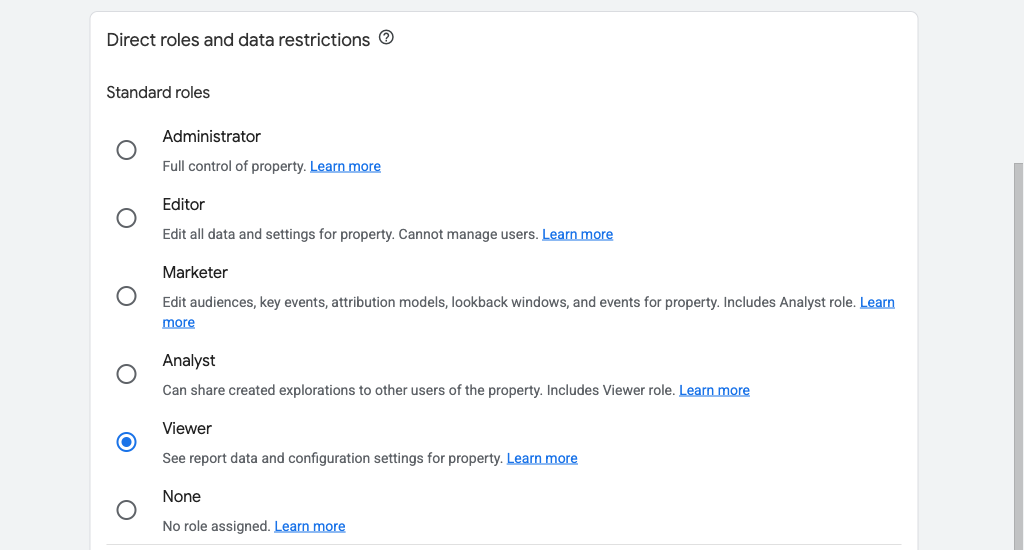
Below the email field, under Direct roles and data restrictions, are six radio buttons: Administrator, Editor, Marketer, Analyst, Viewer, and None. Pick one.
It defaults to Viewer, so if you click straight through without touching this, the person gets read-only access and will come back to you. Full definitions are in the next section — for a marketing agency building out your tracking, Editor is usually correct.
Set data restrictions, if you need them
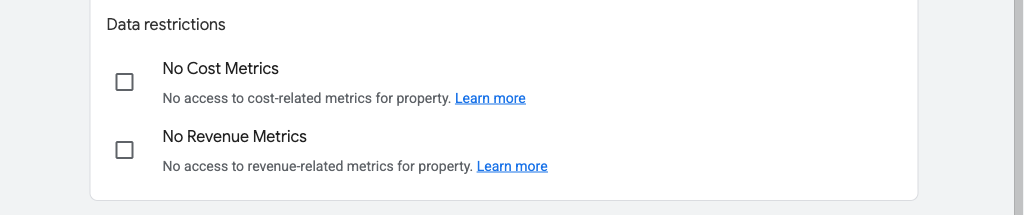
Underneath the roles are two optional checkboxes: No cost metrics and No revenue metrics. They hide exactly what they describe, while leaving everything else visible.
Most agencies need both cost and revenue to do their job — hiding revenue from the people optimising for it is self-defeating. These are for wider internal audiences: a content team that should see traffic but not margin.
Click Add, and check the list
The Add button is in the top right of the panel. It closes and returns you to the property access list from step three, where the new person is now a row with their role beside their email. If the row is in the list, the job is done.
They sign in at analytics.google.com with that account and the property is there. There is nothing to accept.
Which role to give
The roles are cumulative — each one can do everything the roles below it can, plus a little more. Google describes each in the panel itself; here is what they mean in practice.
- Everything, including managing users and assigning roles
- Can delete the property
- Keep this to yourself and, at most, the partner who built your setup
- Full control of property settings and data
- Creates conversions, audiences, and data streams
- Links Google Ads and Search Console
- Cannot add or remove users
- Edits audiences, key events, attribution models, lookback windows, and events
- Includes everything an Analyst can do
- Good for a media buyer who needs audiences but not settings
- Shares created explorations with other users of the property
- Includes everything a Viewer can do
- Cannot change how data is collected
- Sees report data and configuration settings
- Can change which data appears in a report for themselves
- Changes nothing anyone else sees
- No role assigned, so no data
- Used when someone's access is inherited from the account level
- Rarely something you would assign on purpose
One thing to check after granting Editor. Analytics access does not carry over to Google Tag Manager, Google Ads, or Search Console. If your agency is implementing tracking, they will need Tag Manager too — and those permissions live in an entirely different product.
Changing or removing access later
Go back to Admin > Property access management and click the row for that person. The role screen reopens, and you can change the role or use the delete icon in the top right to remove them completely. It applies immediately.
If someone's role shows as inherited, you cannot remove them from the property list — their access comes from the account above it, so you need Account access management instead.
Run through this list whenever a contract ends. Analytics access is the one people forget, because nobody notices it is still there.
Common problems
I cannot see Property access management in Admin
You do not have the Administrator role. Editors can view the user list but the option to manage it is hidden. Ask whoever set up the account originally — often an agency or a former employee — or check Account access management for who holds Administrator.
They have access but see no data at all
Two likely causes. Either they are signed in to a different Google account — have them check the profile picture in the top right — or you granted access to a different property than the one they are looking at. Confirm the property ID with them rather than the site name; several properties can share a name.
Can I add a Google Group instead of individuals?
You can, through Add user groups, but it requires Google Workspace groups configured by your IT admin. For most businesses, adding individual email addresses is faster and easier to audit.
Does this give them access to our Google Ads account too?
No. Analytics and Ads are separate products with separate permissions, even when they are linked. An Editor in Analytics can see Ads data that has been imported into Analytics, but cannot open, edit, or spend from your Ads account.
What about Search Console?
Also separate, and also worth granting at the same time so your partner can see search queries alongside behaviour. Here is that walkthrough: how to add a user to Google Search Console.